Timesheet approvals
Timesheet approvals that do not chase people
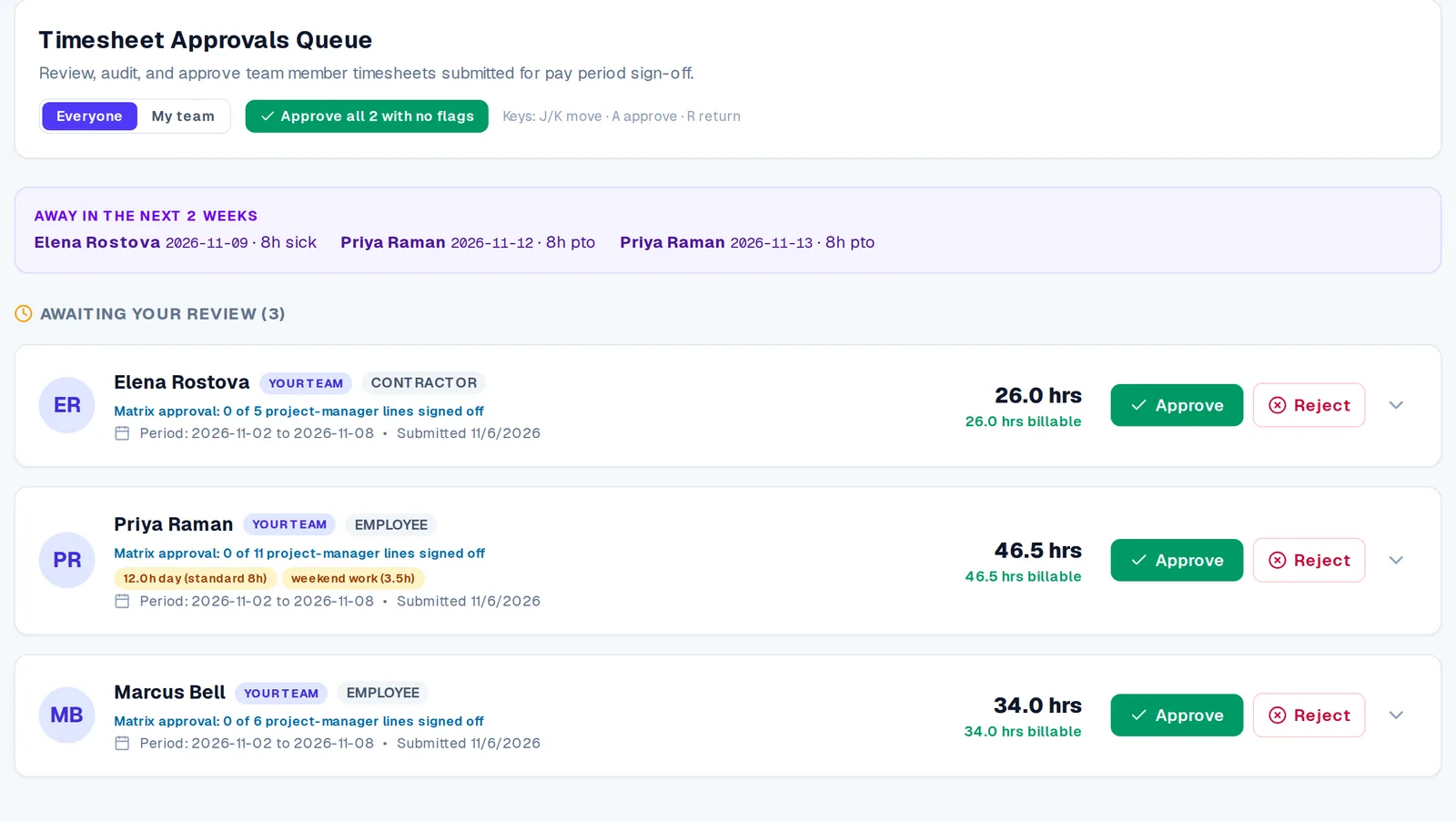
Submitted weeks arrive with the unusual bits flagged. Approve what is clean, comment on what is not, and let reminders do the chasing.
What you get
Flags that matter
Long days, weekend work and sudden swings are highlighted so you look at the right entries.
Keyboard triage
Approve a clean week with one key, or comment on a single entry.
Late-timesheet reminders
Reminders to the person, escalating to the manager.
Two-step approvals
On Firm, the project manager approves their project’s hours alongside the line manager.
Approve in Slack
On Firm, approval notices arrive in Slack or Teams, with an Approve button in Slack.
Time-off approvals
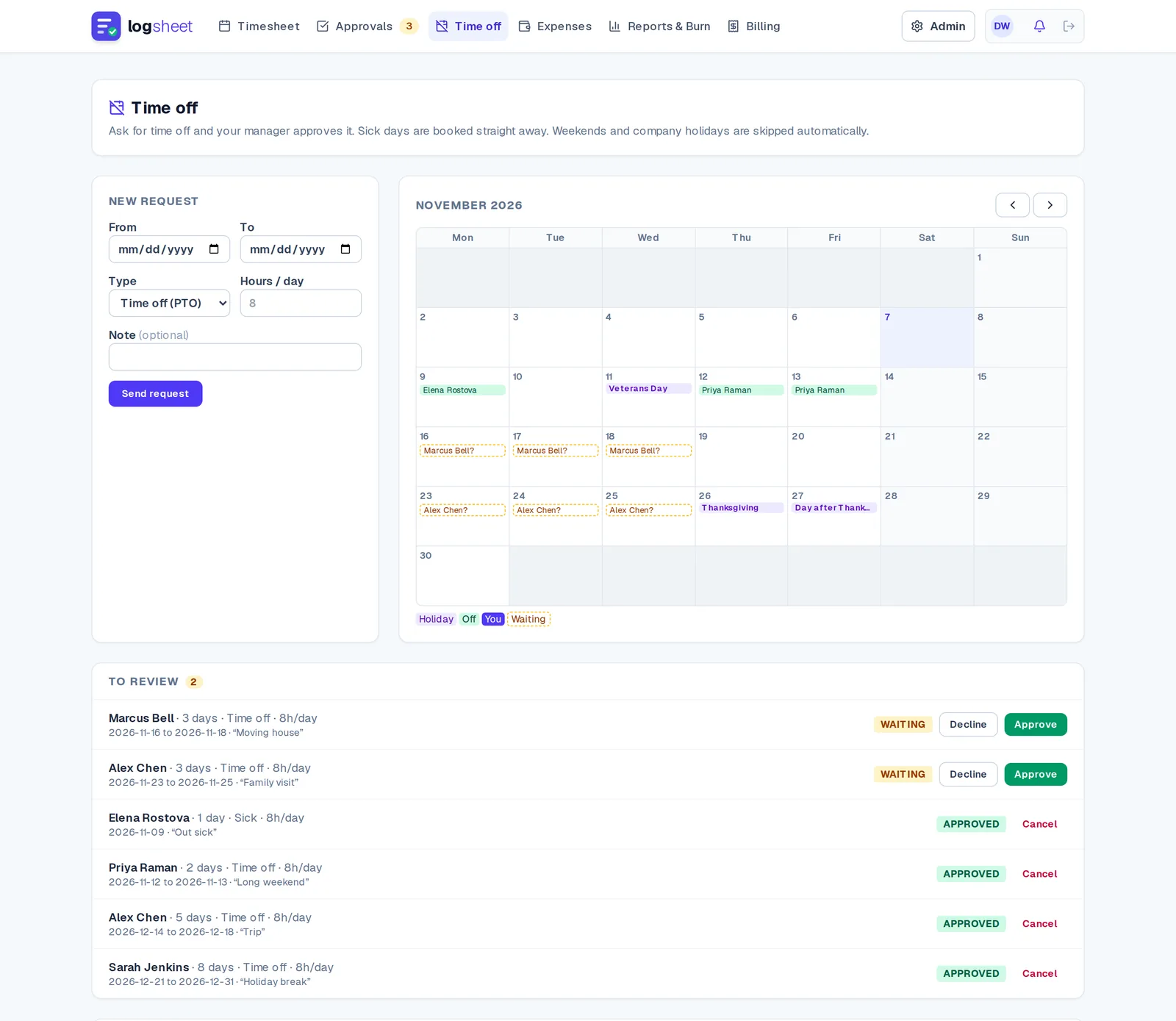
Holiday and time-off requests go through the same manager flow.
How it works
- Step 1
People log time
Grid, quick add or timer.
- Step 2
Reminders go out
Late sheets prompt the person, then the manager.
- Step 3
Managers review flags
Only unusual entries need attention.
- Step 4
Approved time can be billed
Approved hours feed invoicing and reports.
Questions
- Which plan includes approvals?
- Manager approvals start on Team, at $12 per user per month.
- Can more than one person approve a week?
- On the Firm plan, the project manager and the line manager can both approve; the week is approved when both have.
- Can we approve from Slack?
- On the Firm plan, yes. Slack notices include an Approve button.
- Is there an approval step for a solo user?
- No. On Solo, sheets approve themselves.
Related